How to Handle Email Overload Without Losing Your Mind
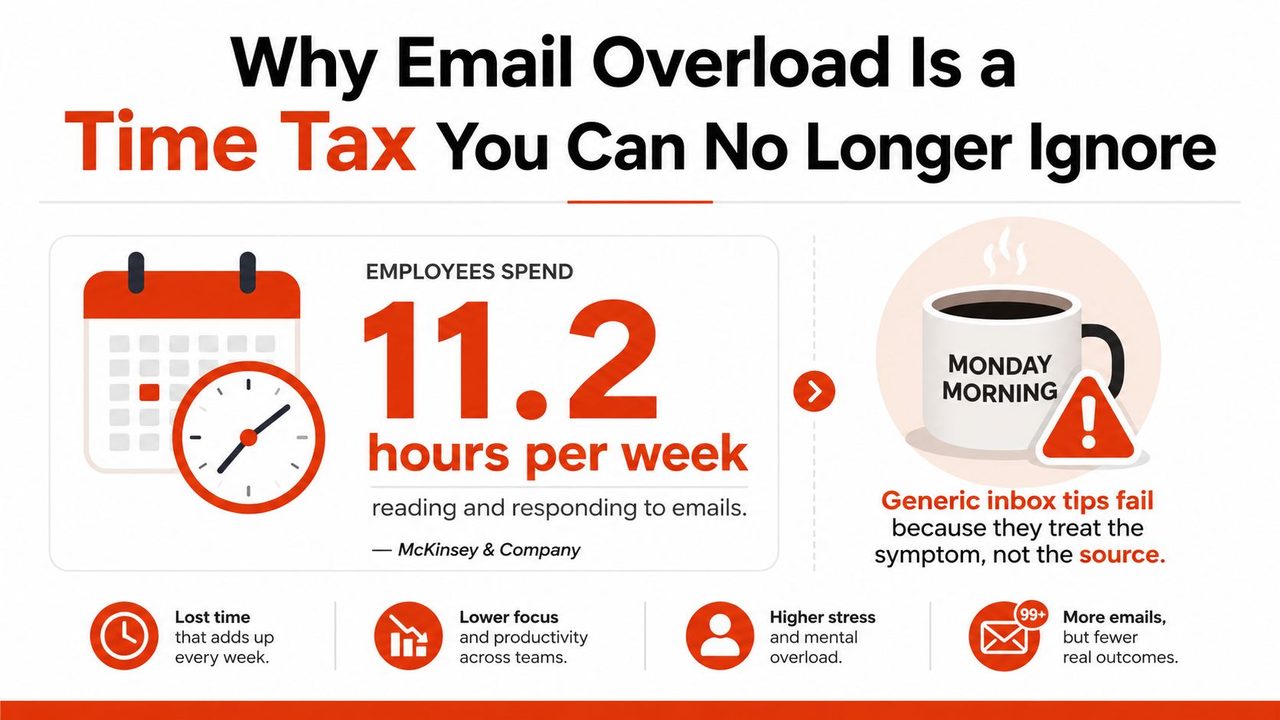
Monday starts with a fresh cup of coffee and an inbox that already feels disrespectful. A few unread newsletters, three client threads, a calendar invite you forgot about, and a subject line that says “quick question” with no way to know if it's quick. That's the shape of email overload, not a messy folder, but a steady drain on attention that keeps asking you to react before you've done any work.
The problem is bigger than annoyance. A long-running benchmark says knowledge workers spend 28% of their workweek managing email, which McKinsey Global Institute's widely cited estimate translates to about 11.2 hours per week Readless summary of the McKinsey benchmark. Later industry summaries also note that the average office worker gets about 121 emails per day, which explains why the inbox can feel like a second job instead of a communication tool.
The fix is not a heroic burst of discipline. It's a system that protects a weekly time budget, cuts noise before it lands, and makes the reply side faster without turning you into a full-time typist. When the inbox becomes a decision queue instead of a dumping ground, the pressure drops fast.
Table of Contents
- Why Email Overload Is a Time Tax You Can No Longer Ignore
- Cut Volume Before You Process Anything
- The 4D Triage System in Batched Windows
- Smart Filters, Rules, and AI Summaries Doing the Heavy Lifting
- Faster Replies With Templates, Canned Responses, and Voice-to-Text
- Delegating and Escalating Without Dropping the Ball
- Resetting Team Norms So Email Stops Being a Chat Channel
Why Email Overload Is a Time Tax You Can No Longer Ignore
Monday morning inbox dread usually starts before you've even made it to your desk. You open email to catch up and see a wall of messages, then spend the first hour deciding what deserves your attention and what doesn't. That's the trap, because the inbox is already claiming working time before any actual work begins.
A recent workplace email report summarized in industry coverage says the average knowledge worker spends 11.7 hours per week processing email Swizero's email statistics summary. The same coverage says a survey of more than 6,000 knowledge workers found 68% linked email overload directly to workplace stress and burnout, while another inbox study reported 67% of workers feel overwhelmed by their inboxes and 82% miss important emails because of clutter Swizero's email statistics summary. Those aren't abstract productivity complaints, they're signs that the inbox is already shaping the day.
What the time tax actually looks like
Email overload isn't just volume. It's the repeated interruption of attention, the lost focus after every check, and the mental drag of wondering what you missed. If you're spending a full chunk of each week managing messages, inbox advice that only says “check less” is too vague to help.
That's why a real fix has to be measured in hours, not vibes. If the current state is costing you a meaningful share of the week, then every tactic should earn its place by saving time, reducing stress, or preventing misses. Anything else is just inbox decoration.
Practical rule: if an email habit doesn't give you back time in the same week, it probably isn't strong enough to survive long term.
For a concrete view of how that time can be redirected into better work habits, there's a useful internal walkthrough of workflow optimization examples at AIDictation's workflow optimization examples. The point isn't to add more systems, it's to stop email from consuming the hours you need for actual output.
Cut Volume Before You Process Anything
The most reliable way to handle email overload is to shrink the flow before you start sorting it. If the inbox is a firehose, triage helps, but source reduction changes the whole experience. You don't want to be a better reader of noise, you want less noise arriving in the first place.
Remove recurring clutter at the source
Start with the obvious stuff, newsletters you never read, product notifications that don't affect your day, and CC-only threads that never require you to act. Unsubscribe from recurring noise, then filter or auto-archive anything that keeps showing up without a real decision attached. The goal is to make sure the inbox is only carrying messages that need human attention.
That same source-reduction logic is useful when you're comparing support tools, AI assistants, and inbox workflows. If you're sorting through options for personal or family use, family-friendly AI alternatives is a practical place to look because it frames AI around safer, everyday communication choices instead of raw automation hype.
Use a weekly reset, not a heroic cleanup
A better pattern is a short weekly reset. Scan recent mail for newsletters, tool alerts, CC-heavy threads, and one-off transactional mail, then unsubscribe, disable, auto-archive, or move the alert out of email entirely. After that, only process the remaining actionable messages in a short, scheduled block. The routine matters more than the intensity, because steady pruning stops volume creep from returning.
A guide on email overload also recommends batch processing inside 20 to 30 minute windows after the cleanup phase, which fits the way a calmer inbox works Filomail's email overload guidance. That order matters, reduce first, then triage, then define response expectations so email is reserved for messages that need it.
Practical rule: don't ask, “Can I handle this faster?” Ask, “Should this be in email at all?”
The mistake I see most often is treating every message as equally important. That guarantees the queue keeps growing. If you clear out low-value inflow first, the remaining inbox becomes small enough to handle without that exhausted, always-behind feeling.
The 4D Triage System in Batched Windows
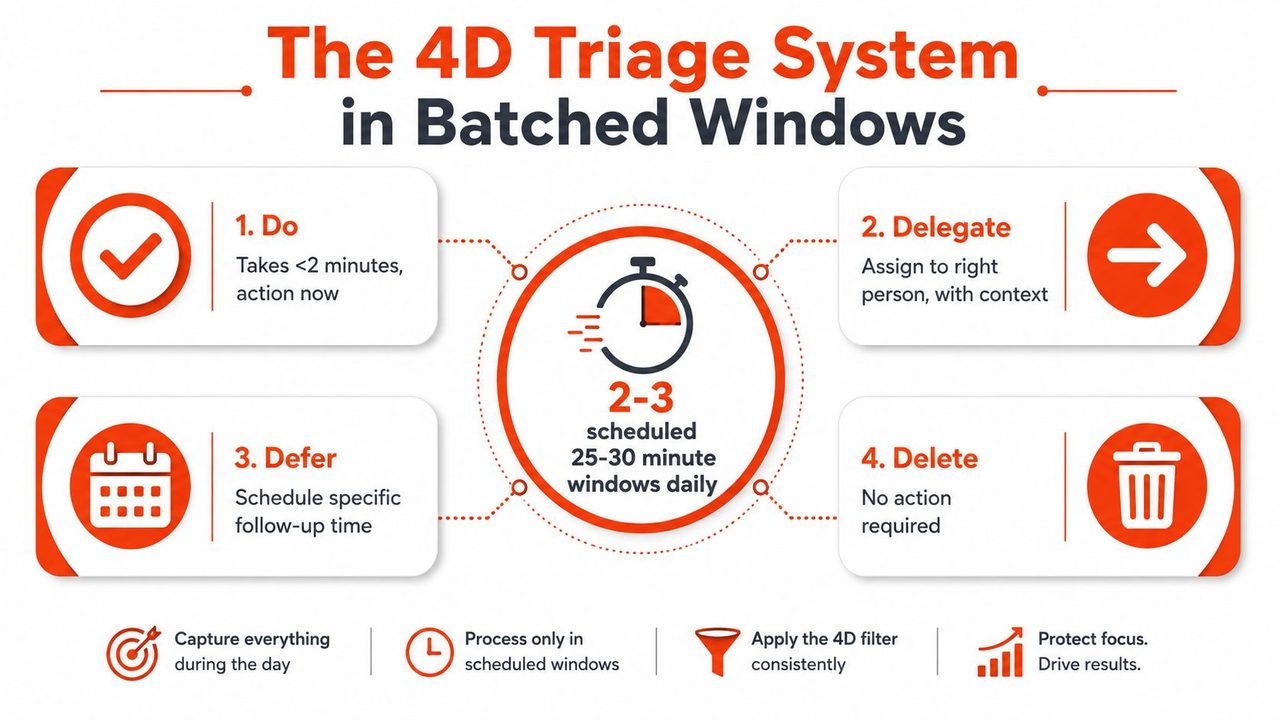
Once the stream is smaller, the inbox becomes easier to run in bursts. The setup that holds up is straightforward. Open email only in fixed windows, keep notifications muted between them, and make a decision on each message the first time you see it. The inbox stops being a place where tasks hide and becomes a place where decisions happen.
Set the windows before you set the rules
The strongest version of this setup uses 2 to 3 fixed inbox windows per day, with email closed between those blocks and notifications off Agentys on managing email overload. The point is to break the reflex of checking in the middle of focus work. If you react to every ping, the sender controls your attention.
Inside those windows, use the 4D triage. Do, Delegate, Defer, Delete. In practice, “Do” means the message takes under two minutes and gets handled immediately. “Delegate” means it belongs to someone else. “Defer” means it needs real follow-up. “Delete” means it does not need action at all.
Here's what the time tax looks like
A crowded inbox eats more than attention. It steals the minutes you spend rereading the same thread, deciding whether to answer now, and looking for the one message that matters. A weekly time budget makes the cost visible, because every unnecessary open, skim, and re-read has to fit inside a fixed amount of time.
The trade-off is simple. If you insist on treating every message as if it deserves the same level of care, your inbox will keep expanding into the rest of the day. If you make fast decisions first, the queue stays small enough to manage without that exhausted, always-behind feeling.
Treat the inbox like a decision queue
The easiest mistake is moving quick replies into later folders, then reading them twice. That creates more work, not less. The cleaner move is to process the short items on the spot, then move only the deeper items into a task list or follow-up queue. That is the shift that makes inbox control sustainable.
For a product manager inbox, this looks like handling a launch question immediately, forwarding a dependency issue to the right owner, scheduling a spec review for later, and archiving FYI mail without guilt. The inbox stops pretending to be a to-do list and becomes a routing layer.
The inbox works best when you stop trying to finish your day inside it.
A simple setup in Gmail or Outlook is enough. Filter low-priority mail into labels or folders, mute notifications except for VIP senders, and reserve the inbox windows for triage only. If a message needs more than a fast decision, it belongs in a system built for work, not in a growing pile of unread mail. That same discipline also creates room to cut email response time later, because faster replies depend on fewer decisions, not more inbox time.
Smart Filters, Rules, and AI Summaries Doing the Heavy Lifting
Manual sorting is where people burn out. Rules do the boring part better than you do, and they do it every hour without getting tired. The best clients let you auto-archive newsletters, label project threads, surface VIPs, and bundle routine alerts so your eyes only land on messages that deserve judgment.
Let the client sort before you start reading
Use Gmail filters for recurring senders, keywords, and messages that can safely skip the inbox. In Outlook, quick steps and rules can move newsletters, receipts, and tool notifications into folders the moment they arrive. If a message doesn't need immediate action, it shouldn't be competing with stakeholder mail.
That's also where AI summaries start to matter. Instead of scanning 30 separate threads one by one, a concise digest can tell you what needs attention first and what can wait. For automation ideas that focus on reducing response time, cut email response time is a useful reference because it frames AI as a workflow aid, not a replacement for judgment.
Compare the reply tools before you pick one
Voice dictation, canned responses, and shared drafts all save time, but they solve different problems. Canned replies are best when the wording hardly changes. Voice-to-text is stronger when the message needs nuance, tone, or speed away from the keyboard. Shared drafts help when multiple people need to review before sending, especially in support or account workflows.
| Tool | Best For | Avg Reply Time | Quality Risk |
|---|---|---|---|
| Canned responses | Repeating acknowledgments, meeting declines, simple status updates | Fastest | Can sound stale if overused |
| Shared drafts | Team-reviewed responses, support handoffs, sensitive messages | Slower | Editing overhead can creep up |
| Voice-to-text dictation | Nuanced replies, mobile work, long explanations, follow-up emails | Very fast | Needs a quick cleanup pass if the context is complex |
The trade-off is simple. The more predictable the message, the more templates win. The more contextual the reply, the more voice dictation helps. For anything in between, rules and summaries do the sorting so you spend your time writing only when it matters.
Faster Replies With Templates, Canned Responses, and Voice-to-Text
Reply speed is where inbox discipline either becomes livable or collapses by week two. If every message still requires you to type from scratch, the system feels heavy. A small reply library changes that because it gives you usable starting points for the messages you send again and again.
Build the ten messages you actually repeat
The core set usually includes status updates, meeting declines, support acknowledgments, project kickoffs, follow-up requests, and polite delays. These aren't creative writing exercises. They're decision shortcuts that keep you from re-inventing tone every time someone asks the same thing in a different way.
A good support template resource can speed this up further, especially when you're handling standard customer replies or internal routing. For that, browse support ticket templates is worth keeping handy because it's a practical source of response structure rather than a blank generic prompt.
Here are two templates that help:
- Short acknowledgment: “Got it. I'm on this and will come back with the next step by [time/day]. If you need anything else in the meantime, send it over and I'll fold it in.”
- Polite decline: “Thanks for sending this. I can't take it on right now, but [name/team] is the right owner for it, and I've passed along the context.”
For workflow-specific dictation use, dictate directly in Gmail is a useful fit because it shows how spoken replies can be dropped into an email flow without making the message sound robotic.
Use the right tool for the reply
When the message is routine, a canned response wins. When the message needs detail and you're away from your keyboard, dictation is faster and often clearer. When the message needs approval or cross-team context, a shared draft is safer than rushing a solo send.
If you want a professional tone for dictation, the setup should be simple. Tell the tool that email should be concise, courteous, and free of filler. Then use it for the longer replies where typing would slow you down and drain your attention.
Delegating and Escalating Without Dropping the Ball
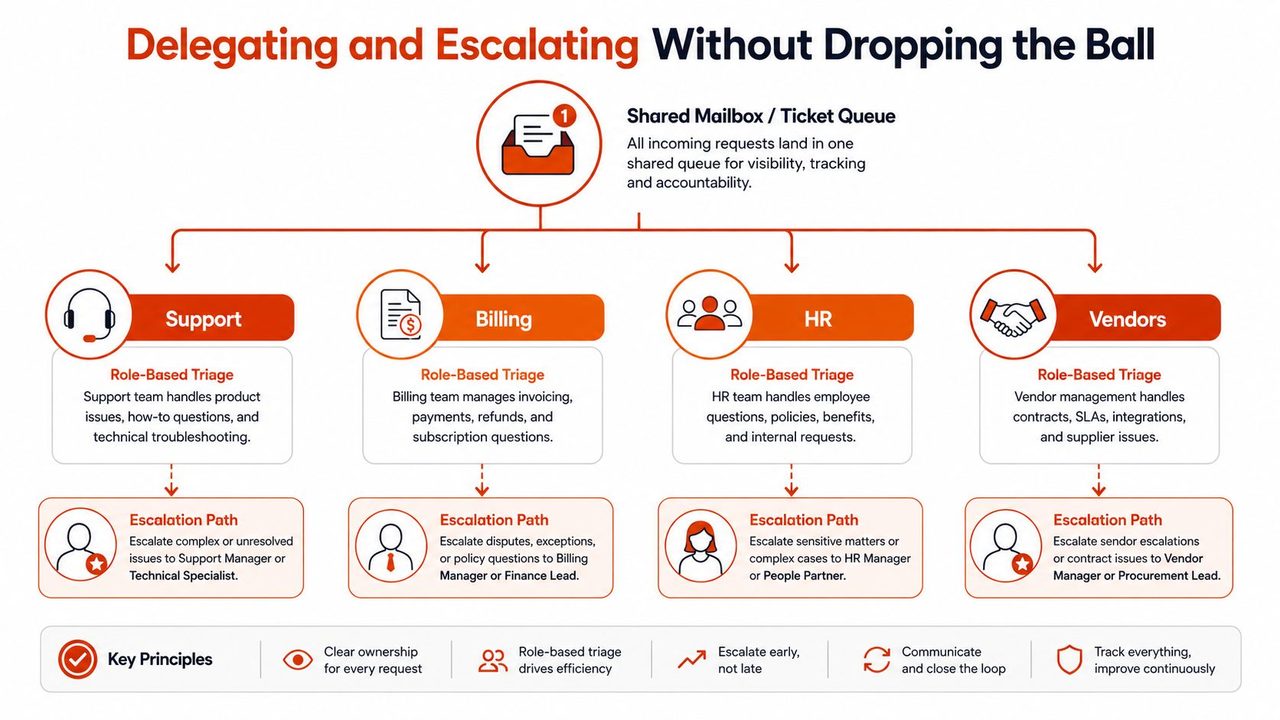
A lot of email overload exists because teams keep work in the wrong place. Support questions stay in personal inboxes. Billing issues sit in a manager's thread. HR asks get buried under vendor pitches. That's not a productivity problem, it's a routing problem.
Move repeatable work out of personal inboxes
Shared mailboxes, ticket queues, and role-based triage solve the part that individual discipline can't. A customer queue that gets about 60 messages a week should not depend on one person reading every thread in a private inbox. It should live in a system where ownership is visible, escalation is defined, and response handling can be shared.
A recent organizational playbook points toward ticketing systems, shared mailboxes, role-based triage, and digests so email becomes an entry point rather than the work system Get Inbox Zero's organizational routing playbook. That is the right lens for support, billing, HR, and vendor noise. If the same category keeps arriving, the answer is usually to route it somewhere else, not to become a faster personal sorter.
Know when routing is more honest than ownership
The rule of thumb is simple. If you can't personally resolve the issue, don't keep it trapped in your inbox. Forward it with context, assign it to the right queue, and define the next action clearly. That protects important mail from getting buried under messages that were never yours in the first place.
The win is that the team learns where things belong. Once routing is visible, people stop asking the same sender to rediscover the correct owner every time. That reduces the hidden churn that makes inboxes feel permanent.
Resetting Team Norms So Email Stops Being a Chat Channel
The deepest fix is cultural. Personal inbox discipline helps, but only inside a communication contract that the whole team follows. If a team uses email like a live chat tool, batching, filtering, and templates can only take you part of the way.
A Monday inbox tells the story fast. A project manager has six people replying to one thread about a minor wording change, a support lead is copying private threads into a shared folder, and three tool alerts have landed in separate inboxes before anyone has started real work. That is not an email problem anymore, it is a team behavior problem.
Reset the rules people use to decide where to send things
The modern advice is to separate email from attention. Stop using it as a substitute chat tool, stop expecting instant replies for everything, and move thread-heavy conversations into shared docs or chat when the work needs back-and-forth. Clear routing rules and automated digests can also keep tool alerts from interrupting deep work, which is one reason a tighter asynchronous setup matters so much SnapComms on beating email overload.
A simple team wiki script can start the conversation:
- Response expectations: “Email is for requests that need a tracked reply. Time-sensitive issues use chat or the ticket queue. No one is expected to reply immediately unless the message is marked urgent by the owner.”
- Routing rule: “Support, billing, HR, and vendor requests should go to the shared inbox or ticket system, not to personal threads.”
- Alert rule: “Tool notifications should use digests wherever possible, not individual inbox pings.”
That kind of language matters because it makes the norm explicit instead of hoped for. People stop guessing which channel deserves a reply and start sending the work where it belongs.
Measure what changes
The only metrics that matter here are the ones tied to behavior. Track weekly triage minutes, response-time medians, and inbox-zero rate. If the triage window keeps shrinking and the response-time pattern is stable, the system is working. If not, the team is probably sliding back into ad hoc email habits.
A 30, 60, 90 day approach helps the change stick. At one month, look for lower incoming volume. At two months, make sure the windows are being respected. At three months, delegation and team norms should be in place so the process no longer depends on motivation.
Practical rule: the inbox should get quieter because the team is routing better, not because one person is working harder.
If you want the communication side to feel less reactive, the asynchronous-work stack matters just as much as the inbox rules. This internal guide on asynchronous communication tools is a useful companion if your team needs a cleaner way to replace constant email follow-up with saner coordination.
If you're rebuilding your inbox from scratch, AIDictation can help on the reply side by turning spoken thoughts into clean, ready-to-send email much faster than typing. It is especially useful when you've already cut the noise and now need to answer faster without losing tone or clarity. Visit AIDictation and use it to turn email from a time sink into a short, controlled part of your day.
Frequently Asked Questions
What does How to Handle Email Overload Without Losing Your Mind cover?
Monday starts with a fresh cup of coffee and an inbox that already feels disrespectful. A few unread newsletters, three client threads, a calendar invite you forgot about, and a subject line that says “quick question” with no way to know if it's quick.
Who should read How to Handle Email Overload Without Losing Your Mind?
How to Handle Email Overload Without Losing Your Mind is most useful for readers who want clear, practical guidance and a faster path to the main takeaways without guessing what matters most.
What are the main takeaways from How to Handle Email Overload Without Losing Your Mind?
Key topics include Table of Contents, Why Email Overload Is a Time Tax You Can No Longer Ignore, What the time tax actually looks like.
Ready to try AI Dictation?
Experience fast voice-to-text on your device. Free to download.
Download FreeRelated Posts
8 Best Bilingual Dictation Apps: 5 Tested + 3 Baselines
We tested five bilingual dictation apps on Russian-English code-switching, plus three common baselines. Compare WER, language recall, script, and workflow.
AI Dictation vs Diktuy: Russian-English Accuracy Test
We tested AI Dictation vs Diktuy on the same Russian-English recording. Compare WER, English-word preservation, full transcripts, and errors.
AI Dictation vs Oravo: Bilingual Accuracy Test
We tested AI Dictation vs Oravo on the same Russian-English clip. Compare WER, English-word preservation, AI enhancement, and transcript fidelity.